

Memo+ is a color enhancement feature for Flipnotes on Sudomemo. It allows you to replace the default Flipnote colors and add visual effects when your Flipnote is viewed on Sudomemo Theatre, while the original Flipnote remains unchanged on Nintendo DSi and 3DS systems.
Sudomemo Plus is required for your Memo+ palettes to be displayed to viewers, but you can still create and save palettes for your Flipnotes within the Memo+ Editor. If your Sudomemo Plus runs out while you have a Flipnote with Memo+ enabled, Memo+ for that Flipnote will remain enabled, but it will not allow updates to the palettes, and you cannot enable Memo+ on other Flipnotes until you get Sudomemo Plus again.
If you have any questions or concerns, feel free to reach out to us via Discord or Support Email!
How to Use Memo+
Edit and Apply a Memo+ Palette
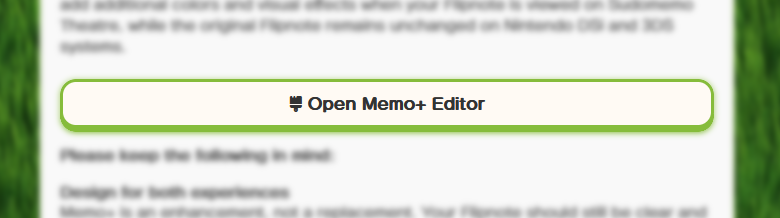
To create a Memo+ palette, go to the Flipnote you want to create a palette for, and click Settings. Scroll down until you find the Memo+ tab and click Open Memo+ Editor.
To enable your palette, click the Apply Memo+ toggle and click Save.

Using the Memo+ Editor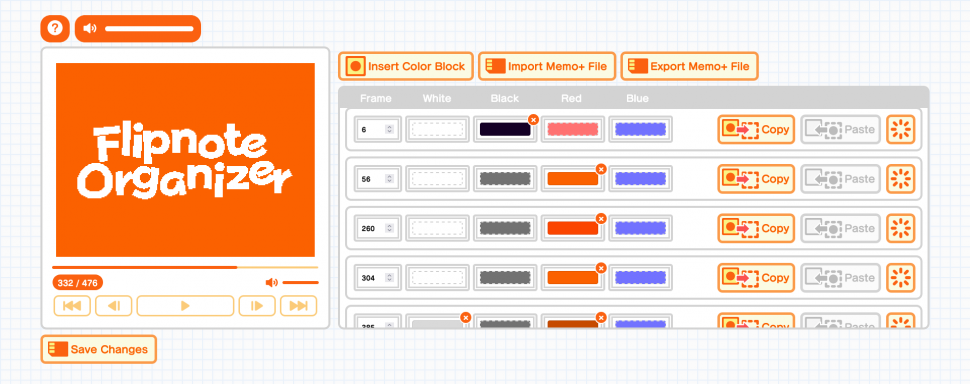
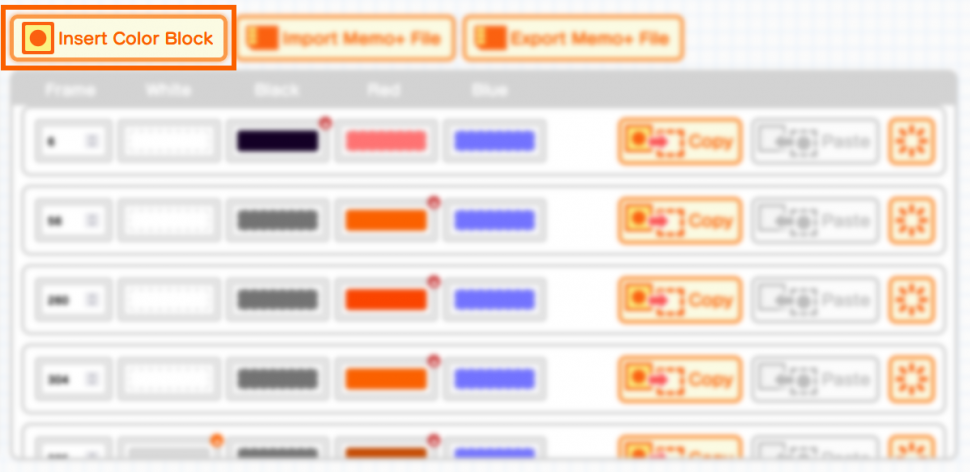
You can add or remove color blocks by clicking Insert Color Block.
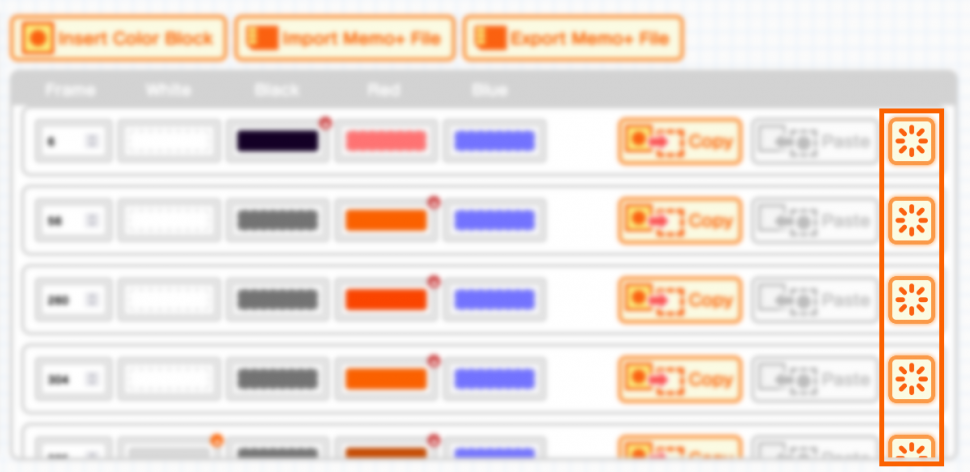
To remove a color block, click the Erase button in the color block
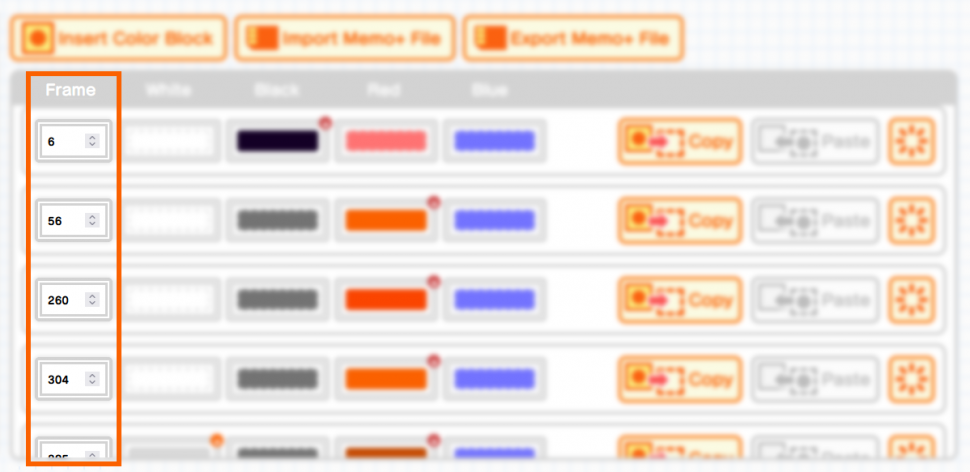
To specify the frame that you want a palette change to begin, set the frame value in the color block. (Palettes will persist throughout the rest of the Flipnote until you specify a new palette.)
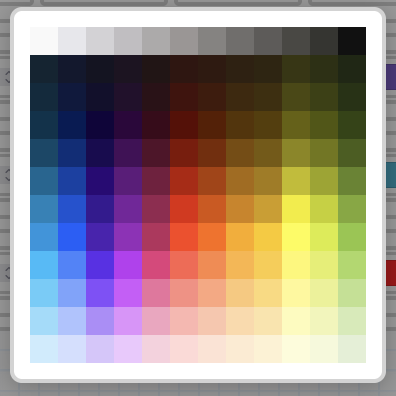
Clicking on the color boxes inside of a color block will bring up a color picker. Default Flipnote colors are indicated with a dashed border.
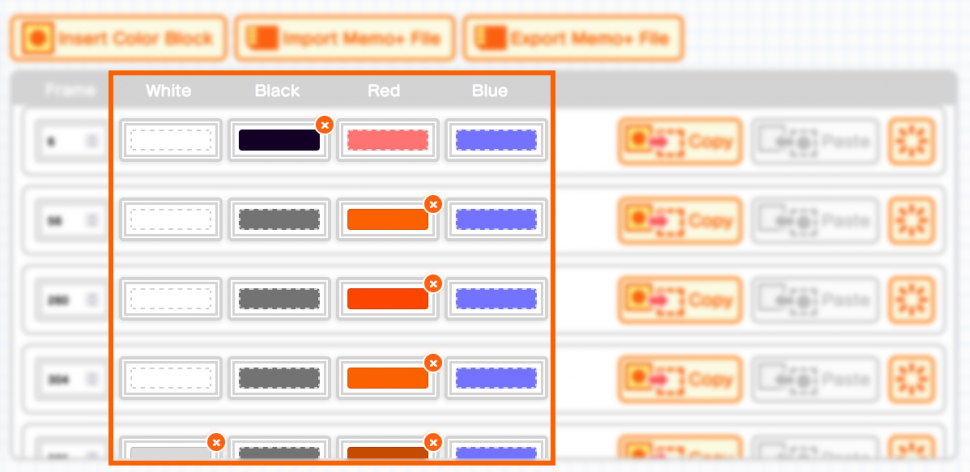
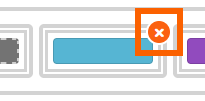
To return a color in your color block to default, click the X button in the top right corner of the color.
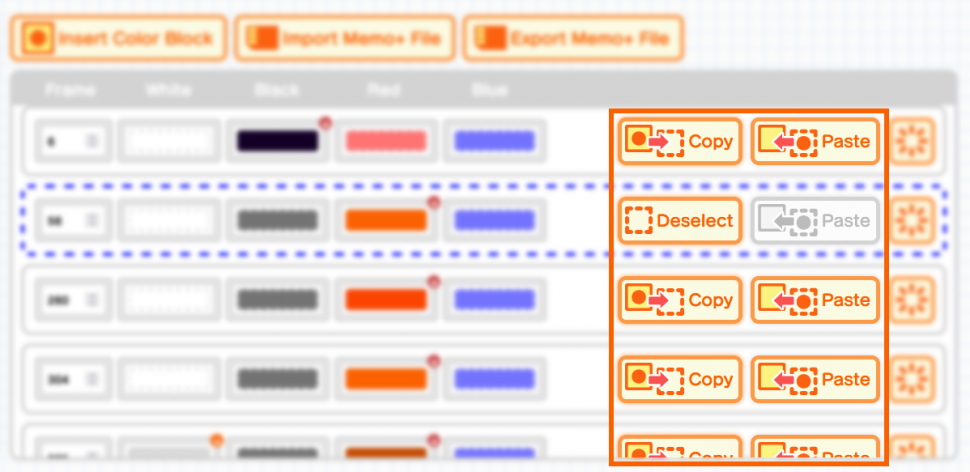
To copy a palette, click Copy in the color block you want to copy,
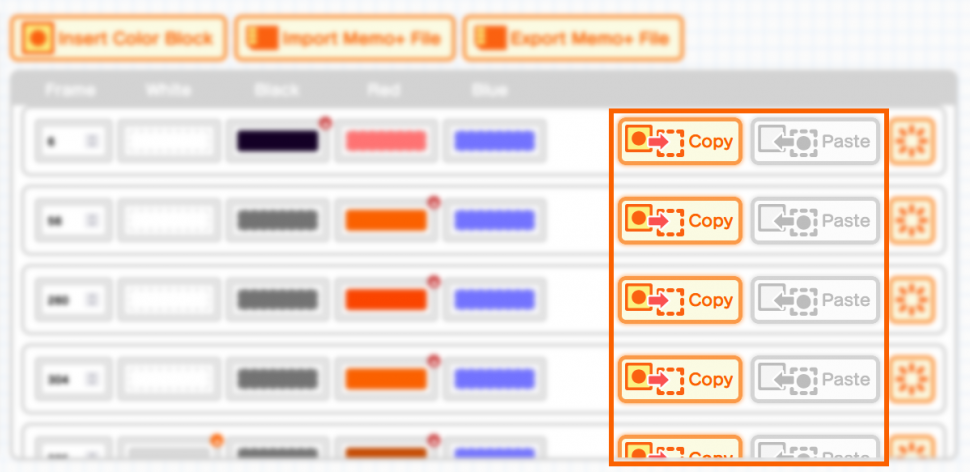
then click Paste on any color block that you want to have the palette.
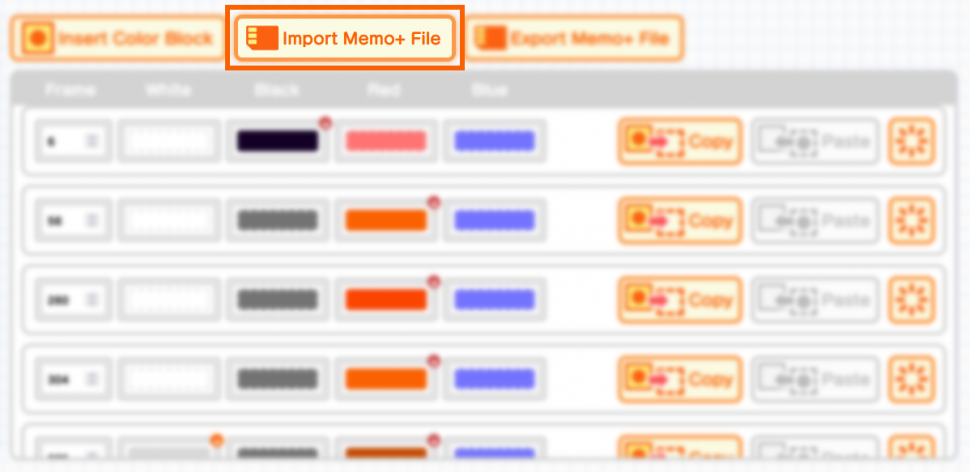
To import a palette from your device, click Import Memo+ File.
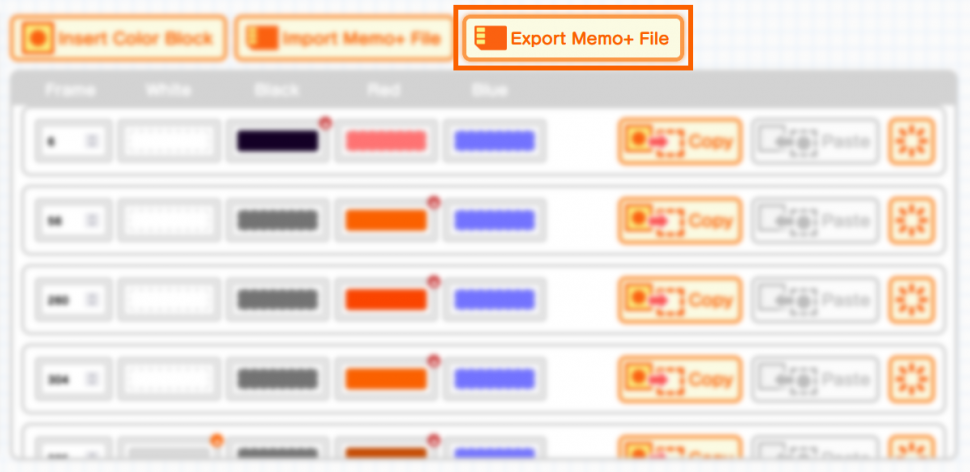
To save your palette to your device, click Export Memo+ File. This will export as an .mplus file.
To save your palette on Sudomemo, click Save Changes.
View Memo+ in the Flipnote Organizer
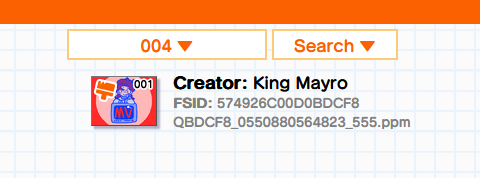
Before loading your Flipnotes into the Flipnote Organizer, put your .mplus into the same folder as your PPM. Make sure that they share the same filename.

The presence of Memo+ will be indicated with an orange paintbrush on the top left of the Flipnote thumbnail.
Tips for Memo+
Design for DS first
Although you have access to all of these shiny new color options, your Flipnote should still be clear and enjoyable on original hardware where Memo+ effects are not visible.
Be clever with your colors
You have unlimited color choices but a limited palette, so make the most out of your colors!
Say you need green. Instead of setting a color to green, mix a blue dither with a yellow dither, now you have 3 colors!